Imagine this scene: you're on an important work video call, and suddenly, the connection becomes sluggish and choppy. You assume it's the internet provider. Later, your printer starts spewing out pages with strange messages, or your electricity bill arrives with an inexplicable spike because someone has been using your network to secretly mine cryptocurrency.
This is not the script of a sci-fi series. This is the reality for thousands of homes and small businesses operating with the same router the technician installed five years ago a device that has never been updated. In a world where remote work is the norm and every lightbulb, TV, or doorbell is connected to the internet (IoT), your home network is the new primary entry point for cybercriminals.
According to the FBI's 2025 Internet Crime Report, reported losses from cybercrimes at the individual level exceeded $15 billion, with an alarming increase in attacks targeting IoT devices and poorly configured Wi-Fi networks. Contrary to popular belief, you don't need to be an IT expert to stop these threats. You just need a method.
In this article designed for both the home user looking to protect their family and the small business owner handling sensitive data. I will guide you step-by-step to transform your vulnerable network into a digital fortress. Forget the incomprehensible jargon. Here you'll find concrete solutions, real-world examples, and free tools you can apply today.
Section 1: Fortify the Brain of Your Network: The Router (The Step 90% of People Ignore)
The router is the device that receives the signal from your cable or phone company and distributes it throughout your home. It is the first line of defense. If an attacker controls your router, they control absolutely everything that enters and exits your home: your banking passwords, security camera footage, and work computer files.
The Silent Problem: Default Credentials and Outdated Firmware
The most common real-world case is seen in densely populated neighborhoods. John, a freelance graphic designer in Chicago, noticed his 1 Gbps fiber connection was "stuttering." Using the free Fing app on his phone, he discovered 15 connected devices. He only owned 7. The rest belonged to the neighbor in Apartment 3B, who simply tried their luck with the username admin and password admin (or the one on the router sticker) to connect.
Practical Step-by-Step Solution:
- Change Administrator Credentials RIGHT NOW:
- ters long, including symbols, uppercase letters, and numbers. Do not use birthdays or "12345678."
- Update the Firmware (The Router's Operating System):
- Look in the router's advanced settings for an option called "Firmware Update" or "Administration."
- Key Tip: Do not trust the "Check for Updates" button on an old router. Visit the manufacturer's official website (Asus, TP-Link, Netgear, Linksys, Eero) every three months, search for your exact model, and download the latest version. Cybercriminals exploit vulnerabilities like KRACK (attacks on WPA2) that are only fixed with firmware patches.
- Real Example: The Mozi botnet infected millions of home routers from Netgear and D-Link in 2024-2025 solely because users did not install a critical security update released months earlier.
- Disable WPS and UPnP (The Backdoors):
- WPS (Wi-Fi Protected Setup): This is that little button on the router that lets you connect devices by pressing it or entering an 8-digit PIN. That PIN is extremely vulnerable to brute-force attacks (it can be cracked in hours with tools like Reaver). Disable it NOW. Prefer connecting devices manually by entering the long Wi-Fi password.
- UPnP (Universal Plug and Play): This allows apps and devices (like game consoles or IP cameras) to open ports on the router automatically without asking you. While convenient for online gaming, it is a massive attack vector. Disable it. If you need to open ports for your PlayStation or Xbox, do it manually in the "Port Forwarding" section specifically.
- Set Up a Guest Network (It's Not Just for Visitors):
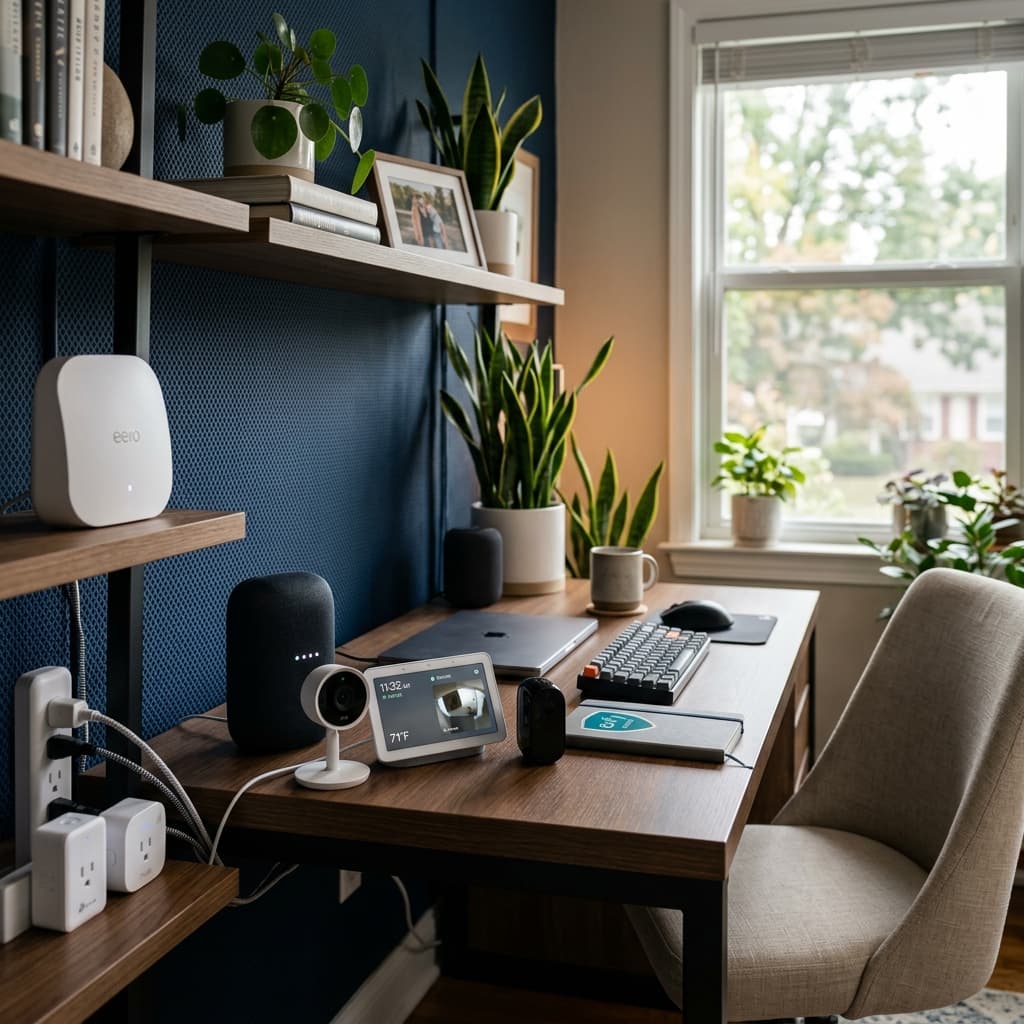
- This is the best security trick for the modern home. Most IoT devices (TP-Link Tapo smart bulbs, Xiaomi sensors, Meross plugs, Amazon Echo Dot) have notoriously poor software security measures. You do not want an attacker who compromises a $10 Chinese smart bulb to gain access to the computer where you do your online banking.
- Action: Create a separate Wi-Fi network called "Guest" or "IoT" in your router settings.
- Golden Rule: Connect EVERYTHING that is not your work PC, personal phone, or primary tablet to that guest network. Alexa, Roomba, Nest Thermostat, Smart TV. Enable "Client Isolation" (or AP Isolation) so that devices on that network cannot see or communicate with each other.
Section 2: Network Segmentation and Access Control (Applying "Zero Trust" at Home)
Imagine your house is a ship. If the hull has only one watertight compartment and one section floods, the whole ship sinks. Network segmentation means creating digital watertight compartments. If a hacker breaks into the crew's cabin (your smart lightbulb), they cannot open the armored door to the bridge (your banking computer).
Do You Need VLANs? For SMBs and Prosumers
For 99% of households, the Guest Network mentioned in Step 1 is sufficient and requires no expensive hardware. But if you are a small business or a freelancer handling sensitive client data (lawyers, accountants, medical clinics), you need one step further: VLANs (Virtual Local Area Networks) .
1- Real SMB Use Case:
Laura runs a dental clinic with three employees. They have one Wi-Fi for staff (with access to patient management software), one for X-ray machines, and a third for patients in the waiting room.
- Without VLAN: If a patient with an infected phone connects to the clinic Wi-Fi, they could scan the network and see the server containing medical records.
- With VLAN: The patient network is isolated. They only see the internet, not the reception computers.
3- Practical Solution (Intermediate-Advanced Level):
- Recommended Hardware: Routers like Ubiquiti UniFi Dream Router (UDR) or TP-Link Omada ER605 (approx. $60-$150). Another excellent option is flashing a compatible router with OpenWrt (free, open-source) or Asuswrt-Merlin.
- Configuration on Asus with Asuswrt-Merlin:
- Go to LAN > VLAN.
- Create VLAN ID 10: For your main "WORK" network.
- Create VLAN ID 20: For "IOT" (Bulbs, Alexa).
- Create VLAN ID 30: For "GUESTS".
- Firewall Rules: Define that VLAN 20 and VLAN 30 CANNOT communicate with VLAN 10 (Your work network). They can access the Internet.
This level of security is what corporations use, but it is entirely accessible for a home office on a moderate budget.
Section 3: Wi-Fi Security and Data Encryption (Beyond Hiding the SSID)
There is a widespread myth that says: "If I hide my Wi-Fi name (SSID), hackers won't see it and I'll be safe." False. Hiding the SSID does not improve security; in fact, it can worsen your device experience and is easily detectable by any Wi-Fi scanning app (like WiFi Analyzer). Real security lies in encryption.
The Urgent Transition to WPA3
The WPA2 security standard has been with us since 2004. It is full of holes. The KRACK attack demonstrated that WPA2 traffic can be decrypted if the attacker is physically nearby.
- 2026 Solution: If your router is less than 3 years old, it very likely supports WPA3-Personal.
- Action: Go to your router's wireless settings and look for "Security Version." Select WPA3-Personal or WPA2/WPA3-Transitional (mixed mode for compatibility with very old devices).
The Danger of Misconfigured Mesh Networks
Wi-Fi Mesh systems (Google Nest Wifi, Eero, Deco) are fantastic for coverage but present a security risk if not managed properly. Many Mesh systems rely on a single password and cloud credentials from the manufacturer.
- Real Example: A phishing attack targeting the Google account associated with Google Wifi can give the attacker full control over your home network pausing internet for your kids and viewing which devices are connected.
- Mitigation:
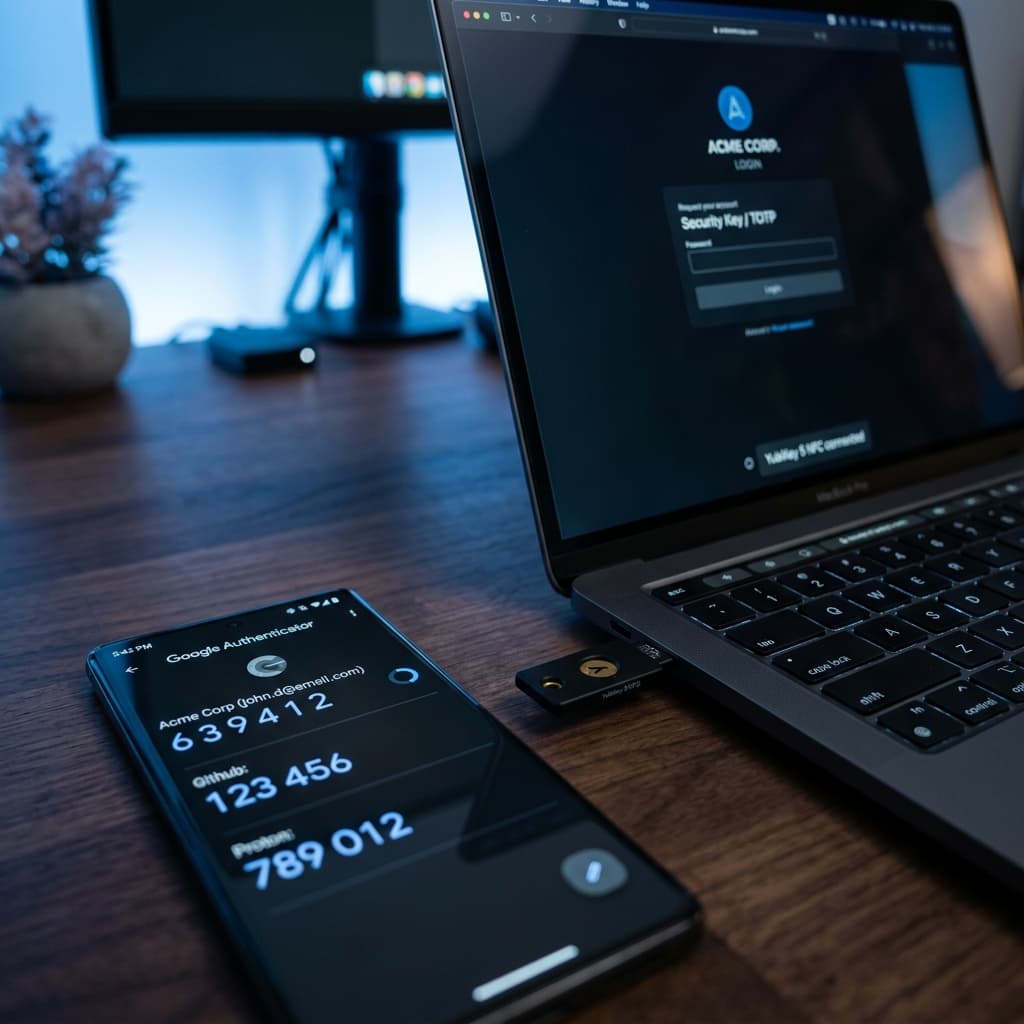
- Activate Two-Factor Authentication (2FA/MFA) on the account (Google, TP-Link ID, Amazon) that manages your Mesh system.
- Change the default DNS (see Section 4).
Should I Use a VPN on the Router??
This is a recurring question in 2026. The answer depends on the goal:
- For Privacy/Anonymity (Streaming or Torrents): Yes. Configuring a VPN (NordVPN, ProtonVPN, Mullvad) directly on the router protects all devices in the house, even those that cannot install VPN apps (like Smart TVs or consoles).
- For Work Security (Remote Work): Be careful. Your company probably already provides you with a corporate VPN (Cisco AnyConnect, FortiClient). If you connect your entire router to a commercial VPN and then connect to the company VPN, you will have a Double VPN that slows down the connection significantly and may trigger security alerts at the office.
- Recommendation: If your router is powerful (4-core CPU), use the "VPN Fusion" (Asus) or "Policy Routing" feature to send only the traffic from the Smart TV or certain IoT devices through the VPN tunnel, leaving your work PC with a clean, direct connection.
Section 4: Endpoint Hardening and DNS Filtering (The Forgotten Layer of Protection)
You've secured the castle door. Now, what about the villagers inside? A distracted employee or a child clicking a malicious link can bypass all the router's defenses. Here we apply layered security (Defense in Depth).
The DNS Filtering Revolution: AdGuard Home and NextDNS
When you type "www.yourbank.com" into the browser, your computer asks a DNS server: "What is the IP address for this name?" Normally, you use your ISP's DNS (Comcast, AT&T, Spectrum), which is slow and does not filter malware.
1- Star Tool (Free for Home Use): NextDNS.io
This tool is a cloud-based firewall for your home. It works like this:
- Sign up for NextDNS (free plan: 300,000 queries/month).
- Get a personalized DNS address (e.g., abc123.dns.nextdns.io).
- Set this address in the DHCP section of your router.
- Result: From the NextDNS dashboard, you can block entire categories of malware, phishing, cryptominers, annoying ads, and even TikTok or Fortnite during study hours at the network level (no software installation needed on devices).
2- Real SMB Example:
Carlos runs a cell phone repair shop. He offers free Wi-Fi to customers. By using NextDNS on the store router, he automatically blocks pornography sites, illegal torrent downloads, and known "phishing" scam pages. This protects the store network and avoids legal issues regarding content customers might consume.
Automatic Updates: The "Zero-Click" Mantra
A Bitdefender study (2025) revealed that 60% of vulnerable IoT devices in homes had available firmware updates that the user simply hadn't installed.
- Critical Configuration: On Windows, Mac, iPhone, and Android, ALWAYS activate automatic security updates.
- For SMBs: Use free tools like Action1 (free for up to 100 endpoints) to manage security patches on all office Windows computers from a single dashboard.
Immutable Backups (3-2-1 Rule)
If your network fails due to Ransomware (a virus that hijacks your files for ransom), having a secure router won't save you. You need an isolated backup.
- Home Strategy: An external USB hard drive (2TB) connected to the router or NAS (Synology, QNAP) that powers on only once a week for backup and then electrically disconnects. This way, ransomware cannot encrypt the drive because it is not connected.
Section 5: Monitoring and Incident Response (How to Know if You've Been Hacked)
Many people set up security and forget it. Cybersecurity is a process, not a product. Implementing basic monitoring allows you to sleep soundly.
Essential Tools for the Home Vigilante
- Fing Desktop / Mobile App (Free):
- Function: Scans your local network in seconds.
- Real Alert: If a device named ESP_8266 or Unknown Generic suddenly appears and you haven't bought any new Chinese smart plug, it's a red flag for intrusion. Fing lets you assign an "Alias" to each known device (e.g., "Anna's iPhone"). Any unknown device immediately stands out.
- Example: With Fing, you can detect if someone is performing ARP Spoofing (a Man-in-the-Middle attack) to intercept your banking traffic.
- Router Log Review (For the curious user):
- Enter the router settings and look for "System Log" or "Logs."
- Look for entries like DoS Attack: ACK Scan or Port Scan from an external IP. A couple of entries per day is normal (internet background noise). But if you see hundreds of attempts per minute directed at your public IP, something is wrong. Reboot the router to force a change of public IP (if your provider uses dynamic IPs).
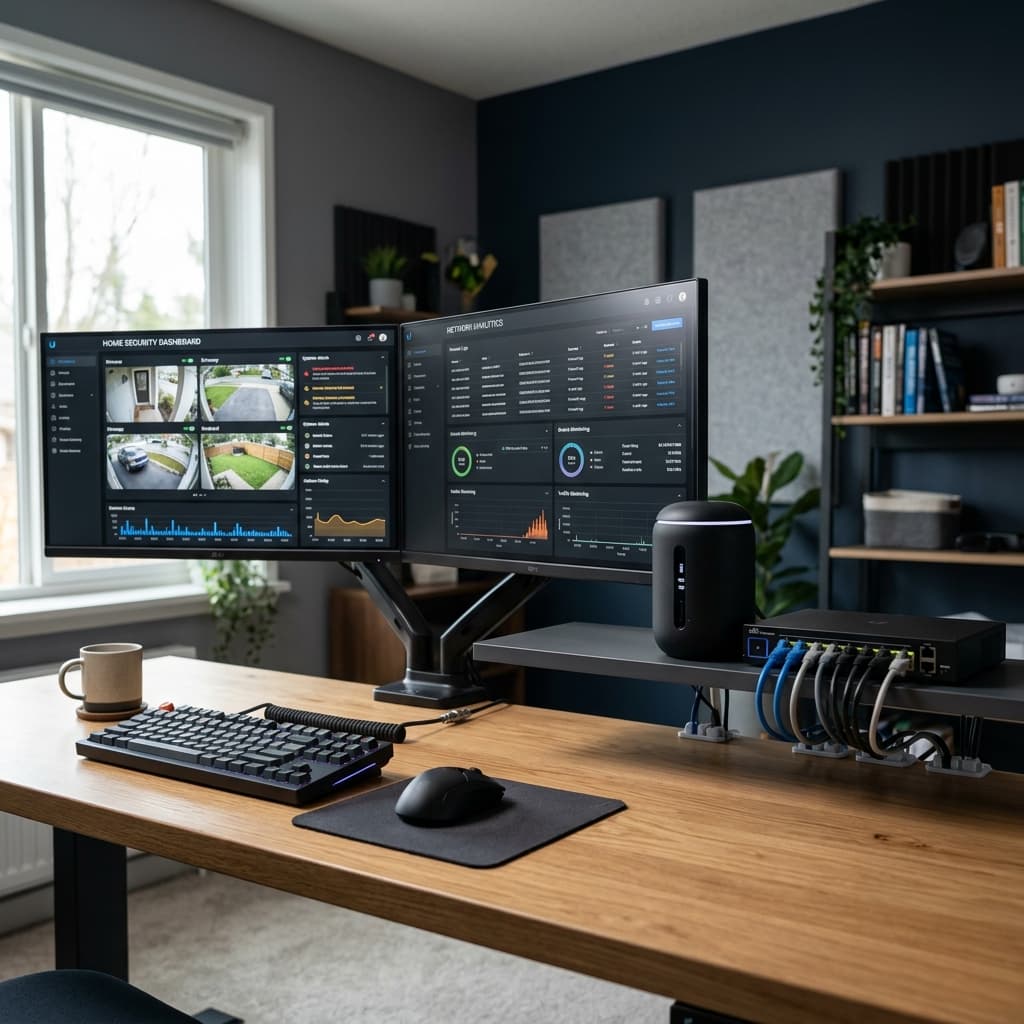
- Bandwidth Monitor (QoS):
- Is the internet slow at night? Check the real time traffic graph on the router.
- Alarm Signal: A device like "Living Room Smart TV" is uploading a lot of data at 3:00 AM while everyone sleeps. This could be a hacked camera streaming video to a server in Russia or a TV forming part of a DDoS Botnet.
Breach Response Protocol (What to Do NOW)
If you confirm an unauthorized user is on your network or a device is infected:
- ISOLATE: Unplug the network cable from the infected PC or go into the router and temporarily block its MAC address.
- CHANGE PASSWORDS: Change the Wi-Fi key and the router admin password. Generate new keys with a password manager.
- FORMAT: The infected IoT device or PC must be factory reset (Hard Reset) and reconfigured from scratch. Never trust a device after an infection.
- SCAN: Use the free version of Malwarebytes to clean remnants on PCs.
Conclusion: Security is a Journey, Not a Destination
We have walked a path from changing the router sticker to implementing advanced DNS filters and network monitoring. If you apply at least Sections 1 and 2 of this guide, you will already be ahead of 95% of connected households and a much less appealing target for opportunistic cybercriminals.
The key is not fear, but digital hygiene. Just as you lock the front door when you leave home or wear a seatbelt in the car, protecting your home network must become a quarterly habit (check firmware, review connected devices in Fing).
In today's remote work ecosystem, where a simple $20 Chinese security webcam can become the weakest link in your security chain, every step counts.
Editor's Note: This article has been reviewed in April 2026 to reflect the latest firmware updates and threats in the current IoT landscape.